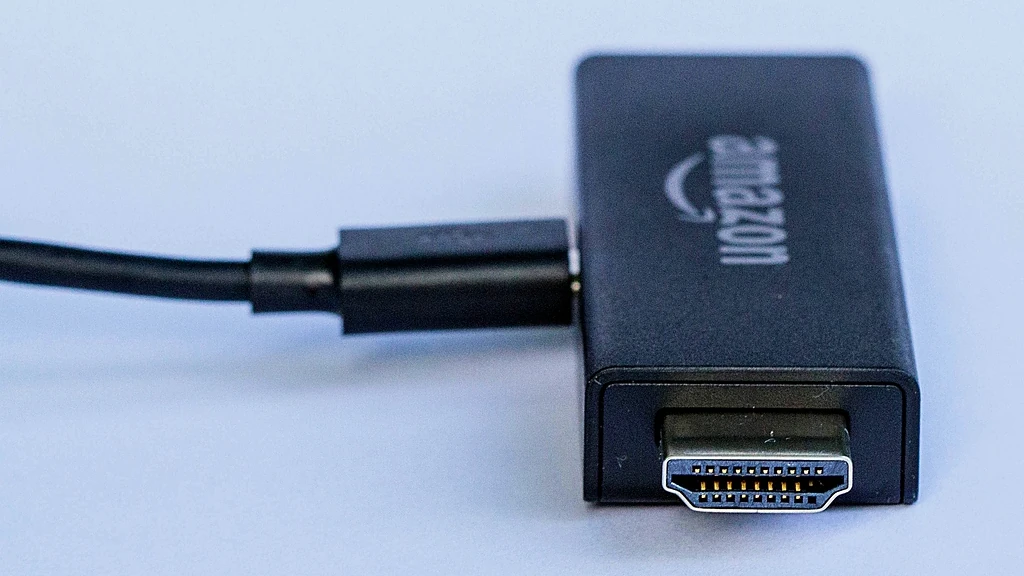
Setting Up Your Firestick 4K for Flawless IPTV Streaming
Amazon Fire TV devices remain the UK’s most popular streaming hardware thanks to their competitive pricing, Alexa voice integration, and support for hardware-accelerated 4K HDR playback.
Follow this straightforward 3-step walkthrough:
Step 1: Enable Downloader & Developer Options
- On your Firestick home screen, navigate to Find > Search and type
Downloader. - Install the orange Downloader app by AFTVnews.
- Open Settings > My Fire TV > About. Click your device name rapidly 7 times until you see the prompt: “You are now a developer!”
- Press Back, click Developer Options > Install Unknown Apps, and toggle Downloader to ON.
Step 2: Install IPTV Smarters Pro or TiviMate
- Launch Downloader and enter the direct code for IPTV Smarters Pro (
250931) or download TiviMate via the official link. - Click Install, then choose Done and select Delete to free up flash storage on your Firestick.
Step 3: Connect with Xtream Codes Credentials
- Open the player and choose Login with Xtream Codes API.
- Enter the details provided in your activation message:
- Any Name (e.g.
Stream8K UK) - Username
- Password
- Server Portal URL
- Any Name (e.g.
- Tap Add User. Within seconds, your channel guide, movies, and TV series will populate.